Hey Xiaomi Lovers, if city lights and neon-soaked skylines are more your style than pastel gradients, Tokio HyperOS Theme might be worth a look. Designed by suhel and built specifically for HyperOS 3.0, this theme draws its visual identity from Tokyo’s urban aesthetic, bringing a night-city energy to Xiaomi, Redmi and POCO devices through its wallpapers, icons and lock screen design.
It’s distributed as both a standalone MTZ file and a matching backup file, each sitting right around 58.5 MB, so there’s some flexibility in how it gets installed. For anyone chasing a theme with a bit of urban character rather than a plain flat redesign, Tokio HyperOS Theme is one of the more visually distinct options currently available through the Theme Store.
Tokio HyperOS Theme Key Features
- Urban Night-City Wallpaper Set: Tokio’s wallpapers lean into a Tokyo-inspired night cityscape aesthetic, complete with neon lighting cues and layered skyline imagery. This gives the theme a moody, cinematic backdrop that stands apart from the softer gradients or nature photography seen in many other HyperOS themes.
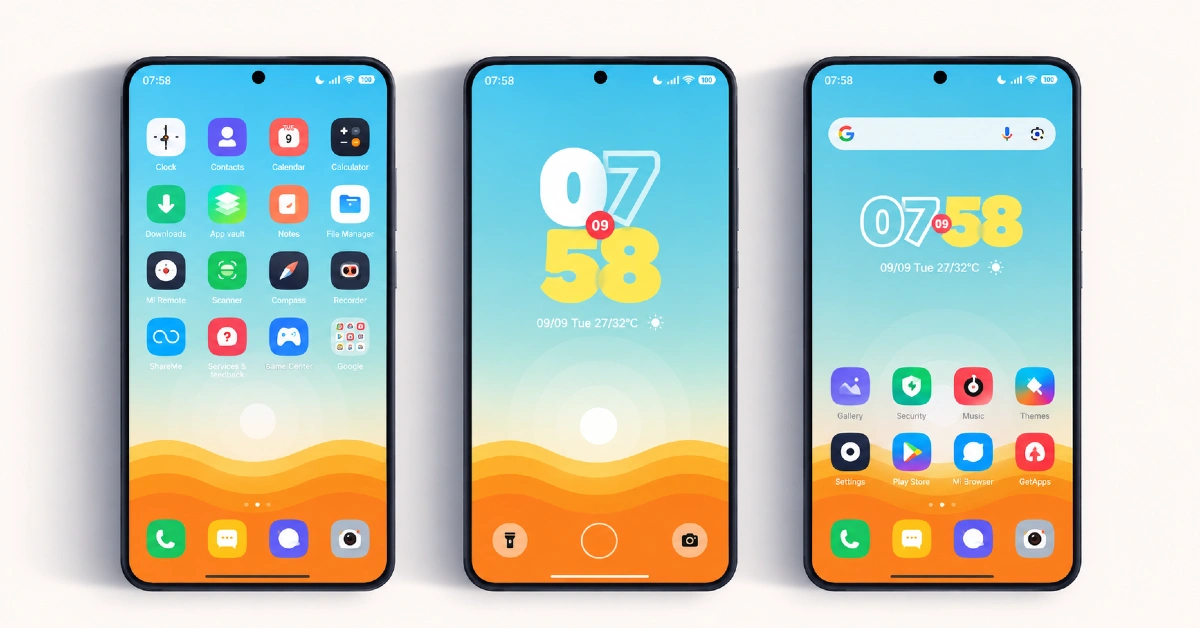
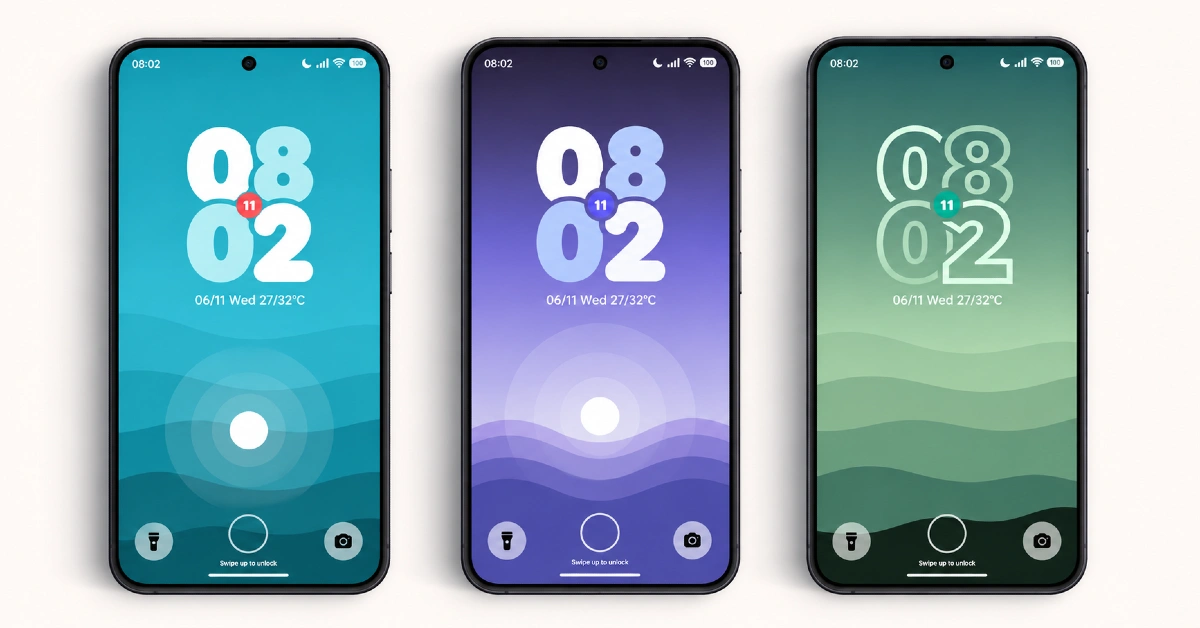
- Redesigned Lock Screen: The lock screen layout is restructured to better showcase the city-themed wallpapers, with adjusted clock positioning and spacing that complements the darker visual style. This is one of the more immediately noticeable changes once the theme is applied.
- Custom Icon Pack: System and popular third-party app icons are redesigned to match the theme’s urban aesthetic, keeping visual consistency across the home screen. As with most icon packs, coverage tends to focus on commonly used apps, so a handful of less popular ones may retain their default look.
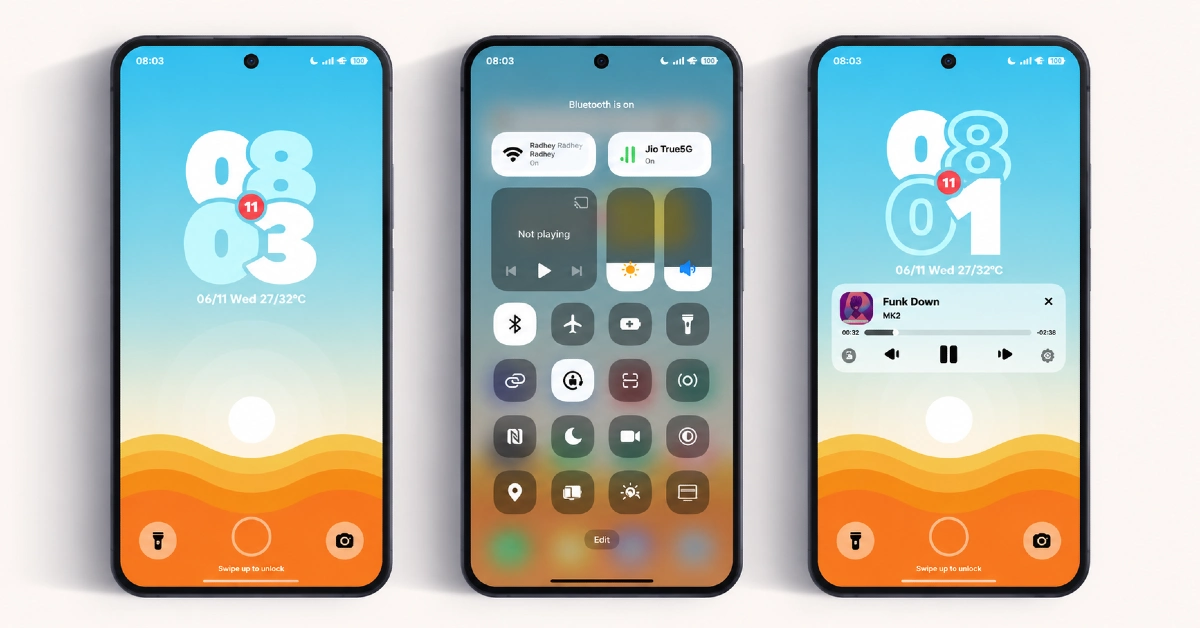
- Updated Control Center Quick toggle icons and the panel design get a visual refresh in line with the rest of the theme’s darker, neon-accented palette. The core toggle layout stays familiar, so it functions mainly as a styling update rather than a rearrangement.
- Full HyperOS 3.0 Optimisation: Tokio HyperOS Theme is built specifically with HyperOS 3.0 in mind rather than being adapted from an older theme base. This tends to result in cleaner rendering and better visual accuracy compared to themes retrofitted across multiple HyperOS versions.
- Dual File Distribution: The theme is available as both a standard MTZ file and a separate backup file of nearly identical size. Most users installing through the regular method will only need the MTZ file, with the backup option mainly useful for those wanting a full restore point.
Tokio HyperOS Theme Preview
The screenshots below show the neon-accented city wallpapers, the redesigned lock screen and how the custom icon set and control center look once the theme is applied. Since the urban night aesthetic is a big part of this theme’s appeal, it’s worth looking through the preview closely to see how the lighting and color choices come together.
Tokio Theme Details
| Attribute | Details |
|---|---|
| Availability | Free, via Xiaomi Theme Store |
| Supported Devices | Xiaomi, Redmi and POCO phones running HyperOS |
| Theme Name | Tokio |
| Designer | suhel |
| Compatibility OS | HyperOS 3.0. 2, 1 |
| Features | Urban night-city wallpapers, redesigned lock screen, custom icon pack, updated control center, full HyperOS 3.0 optimization |
| File Size | 58.5 MB (MTZ file), 58.6 MB (Backup file) |
Tokio Theme Compatibility
Tokio is built specifically for HyperOS 3.0 and works across Xiaomi, Redmi and POCO devices running that version. Since the theme was designed with HyperOS 3.0 in mind rather than adapted from an older base, older HyperOS builds are likely to display some elements with reduced accuracy, so sticking to HyperOS 3.0 is the safer route here.
Custom ROM users on setups like Xiaomi.eu, MIUIRoom, MIUI SR or HyperOS CN can still bring the theme in manually through the MTZ file, though visual results may be slightly less polished outside the official global stable ROM. As with most themes touching the lock screen, restarting the device after installation is a sensible first step if anything looks visually off.
Get Tokio Xiaomi Theme
Download Tokio only through the official Theme Store link rather than random third-party file-sharing sites or unofficial APK sources. Files circulating outside official channels are difficult to verify and may not match the version suhel actually released, sometimes carrying unwanted changes. Sticking to the official Theme Store keeps the installed version consistent with the intended design and ensures future updates remain accessible.
How to Apply Tokio Theme
Follow the steps below to apply the theme:
- Open the Theme Store link given above on your Xiaomi, Redmi or POCO device.
- This will redirect you to the Theme Store.
- Download and install the theme.
- Tap on Apply.
- Customize specific elements such as icons, lock screen or status bar if needed.
- Reboot your device for the full effect, though this step is optional.
Note: If anything looks overlapped or fails to display correctly right after installing, restarting the device usually clears it up without further steps. This theme has gone through careful checks on HyperOS 3.0 without any major issues turning up in that process. Still, if something looks off on a specific device once it’s applied, leaving a comment with the details helps get it looked into.
Installing Tokio on Custom ROM Devices
Devices running a Custom ROM such as Xiaomi.eu, MIUIRoom, MIUI SR or HyperOS CN aren’t able to use the direct Theme Store link, so the MTZ file needs to be brought in manually through the Theme Store app. Here’s how that works:
- Grab the MTZ file for Tokio from the download section.
- Open the Theme Store app.
- Go into the Themes tab.
- Scroll down to find the Import option, then tap it.
- Use the file manager to locate the downloaded .mtz file.
- Wait for the import process to finish.
- Tap the theme once it appears in the list to apply it.
Why Choose Tokio Theme?
- Distinct urban city aesthetic — neon-accented night skylines set it apart from typical gradient or nature themes.
- Built specifically for HyperOS 3.0 — designed with the latest version in mind for better visual accuracy.
- Coordinated icon and lock screen styling — visual elements tie together into one consistent urban look.
- Two file options available — choose between the standard MTZ file or the full backup depending on need.
- Redesigned lock screen layout — a clear visual shift from the stock HyperOS lock screen.
- Consistent control center design — toggle icons and panel styling match the rest of the theme.
- Free through the official Theme Store — no cost involved and no need for third-party sources.
- Cinematic visual identity — wallpapers feel more like a mood piece than a simple background image.
Conclusion
Tokio brings a genuinely different visual mood to HyperOS, trading soft gradients and nature photography for a moody, neon-lit city aesthetic that feels distinct from most themes currently available. Building it specifically for HyperOS 3.0 helps the visuals render as intended, and the dual file options add a bit of installation flexibility. For Xiaomi, Redmi and POCO users on HyperOS 3.0 who want their device to carry some urban night-city character, Tokio is well worth trying.
You may also like:
HyperV3 Theme with Glossy Black Icons and Dynamic Lock Screen for HyperOS
G2redcc HyperOS Theme for Xiaomi, POCO and REDMI Phones
Starry Star UI HyperOS Theme with One UI Look for Xiaomi, POCO and Redmi Phones
Vibgyor HyperOS Theme with Depth Effect Wallpapers for Xiaomi, POCO and REDMI
TNV-4 Theme with Transparent White Icons and a Clean, Minimal Design for HyperOS