Hey everyone! Hope your week’s going well. I’ve been testing out a bunch of themes lately for the site, and this one, HyperUI V4 HyperOS Theme, genuinely stood out enough that I wanted to write it up properly instead of just tossing it into a list.
If you’re using a Xiaomi, Redmi, or POCO device and you’re bored of the stock look, this one’s worth your five minutes.
First Impressions
What I liked immediately about HyperUI V4 HyperOS Theme is that it doesn’t feel like a rushed reskin. The icon set is clean and consistent; nothing feels mismatched or half-finished, which honestly happens with a lot of themes I test. The wallpapers included are genuinely nice too, not just filler images thrown in to pad out the package.
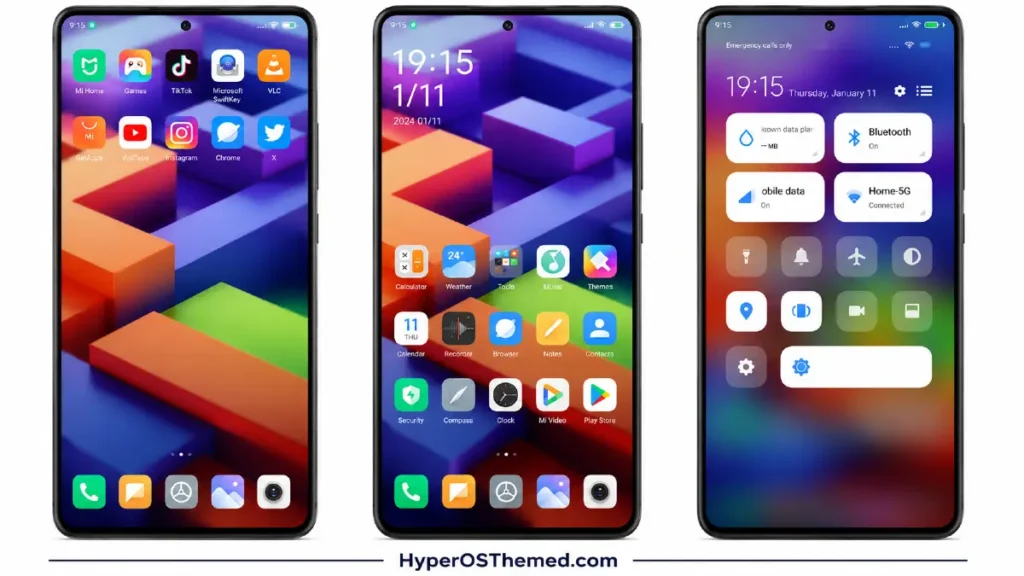
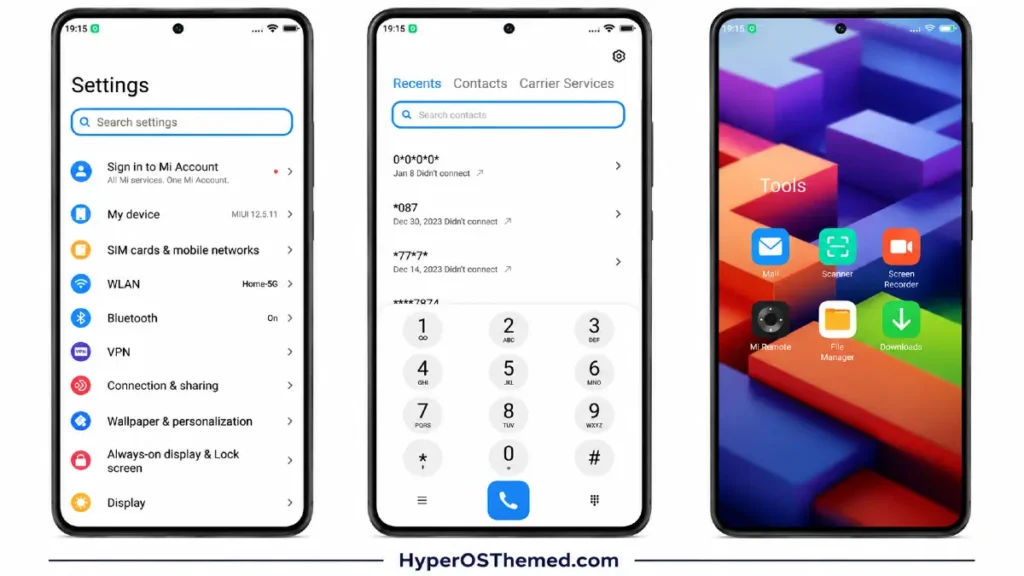
The lock screen is where this one really shines, though. It’s got a cool, distinct look, paired with a charging animation that’s a small touch, but the kind of detail that makes a theme feel polished rather than generic. The Always-on Display styling is also handled well, subtle enough that it doesn’t drain your battery unnecessarily, but sharp enough to look good every time you glance at your phone.
One more thing worth mentioning: this theme includes dynamic color and icon adjustments, so it’s not a completely static, one-look-fits-all setup. There’s a bit of flexibility baked in, which I always appreciate.
Should You Try It?
If you’re someone who likes refreshing your phone’s look every so often, or you’re just tired of seeing the same stock HyperOS interface everyone else has, HyperUI V4 is a solid pick. It’s free, it’s well put together, and credit where it’s due, designer Md Jibon clearly put real effort into this one.
HyperUI V4 HyperOS Theme Details
| Detail | Info |
|---|---|
| Theme Name | HyperUI V4 |
| File Size | 50.31 MB |
| File Format | .mtz |
| Designer | Md Jibon |
| Region/Server | Global |
| Compatibility | HyperOS, MIUI 14, MIUI 13, MIUI 12.5, MIUI 12 |
| Features | Charging Animation, Dynamic Icons, Dynamic Color, Custom Lock Screen, Custom Clock |
| HyperUI V4 HyperOS | Official Theme Store Link |
How to Apply HyperOS & MIUI Themes (Stock ROM)
If your device is running the official HyperOS or MIUI Global Stable ROM, here’s the process:
| Step | Instruction |
|---|---|
| 1 | Open this page using the Firefox browser |
| 2 | Tap the Official Theme Store Link above |
| 3 | The page will open in Chinese, tap the 3 dots in the top-right corner, then select “Open in app” |
| 4 | This launches the Theme Store app, where the download begins |
| 5 | Once downloaded, tap Apply |
If the Official Theme Store Link doesn’t open properly, switch to Chrome or your phone’s default browser, some third-party browsers don’t handle the redirect correctly.
How to Apply HyperOS & MIUI Themes
Running a custom ROM like Xiaomi.eu, MIUIRoom, or similar? You can still install this using the .mtz file directly:
| Step | Instruction |
|---|---|
| 1 | Download the HyperUI V4 .mtz file from the link above |
| 2 | Open the Theme Store app and go to the Themes tab |
| 3 | Scroll to the bottom and tap Import |
| 4 | Select the downloaded .mtz file |
| 5 | Tap Apply |
Tip: Restart your device after applying if anything looks overlapped or glitchy, a quick reboot usually clears it right up. I tested this one myself and it ran perfectly, no issues at all.
You May Like It:
Blackess Pro iOS Style Theme for HyperOS with Dynamic Island
Best iOS Style ProMotion HyperOS theme for Poco, Redmi and Xiaomi devices