Three letters and nothing else made me assume TON was some kind of abbreviation I was missing, maybe tied to a brand or a specific design philosophy, so I actually went looking for context before installing it. I didn’t find anything that explained the name, but by that point I’d already downloaded it onto my POCO X6 and figured I’d judge the theme on what it actually does rather than what it’s called.
TON HyperOS Theme Features
- System-Wide Consistency: The theme reaches Settings, the notification panel, dialer, and messaging app rather than stopping at the home screen. I went through each menu specifically looking for something it missed and didn’t find a gap anywhere.
- Redesigned Icon Pack: Icons use minimalistic shapes with a balanced color palette that stays legible in both light and dark modes. Coverage across my regularly used apps was solid, though a fitness app and a regional shopping app kept their stock icons throughout testing.
- Enhanced Status Bar and Control Centre: Quick settings toggles get noticeably more breathing room than stock HyperOS gives them, and text labels are easier to read without squinting. Rapid-toggling Wi-Fi and mobile data a handful of times showed no lag or misalignment.
- Lock Screen Improvements: The layout keeps to a clear time display and notification visibility without extra elements crowding the space. Font choices held up fine for readability even glancing at it quickly outdoors in bright light.
- Refined Settings Interface: Options are grouped more logically than the stock menu, and the spacing changes genuinely made scrolling through settings less tedious. This stood out most while adjusting connectivity and battery settings a few times during testing.
- Smooth Animations: Light animation touches appear when switching home screens and opening the app drawer. They’re subtle rather than showy, and nothing stuttered on the X6’s hardware throughout testing.
TON HyperOS Theme Preview
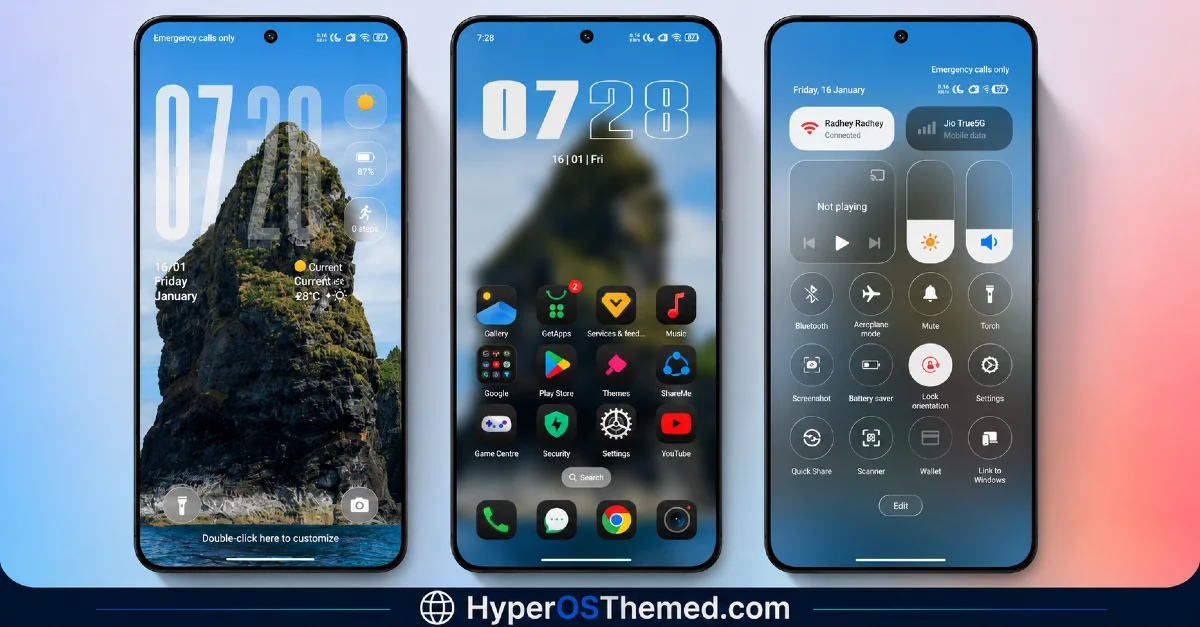
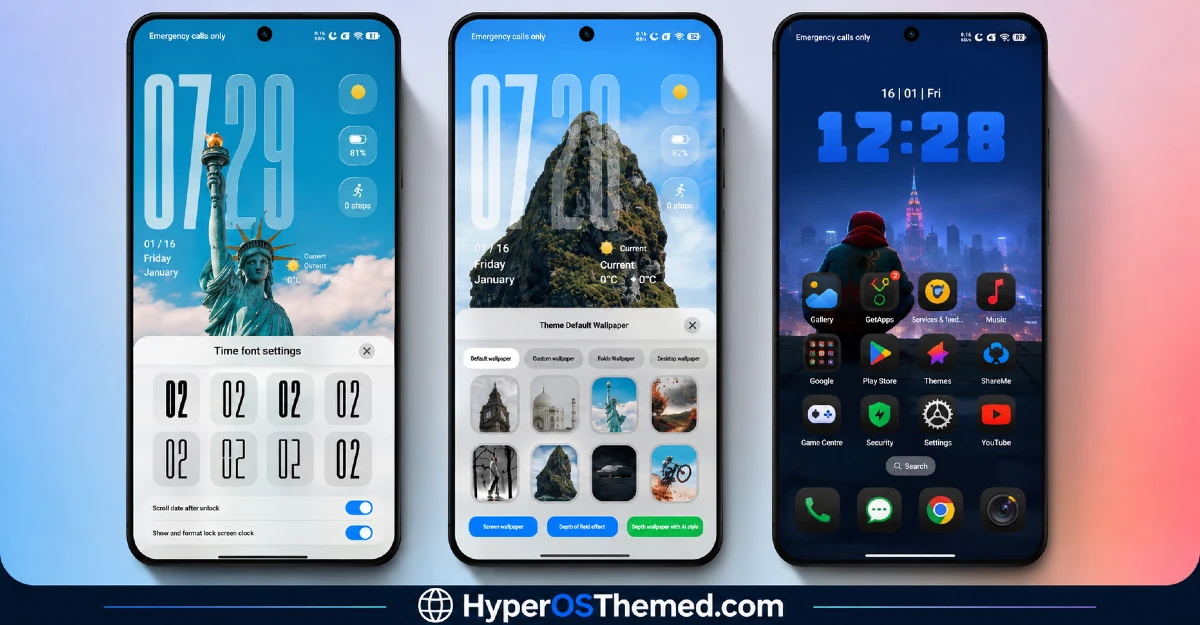
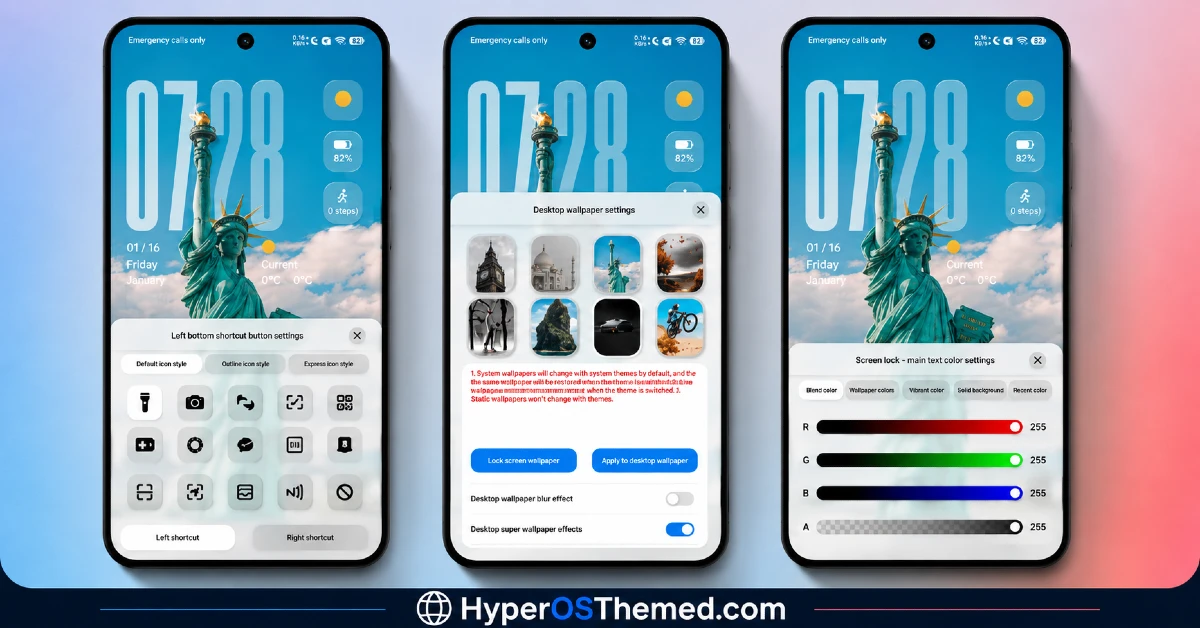
The visual style stays restrained and balanced, mixing light and dark tones without leaning on gradients, transparency, or any decorative flourishes.
Icons keep a simple, rounded shape rather than anything elaborate, which keeps a full app grid looking orderly rather than busy. Whatever the name is meant to reference, the actual design plays it safe and functional rather than making any kind of visual statement.
TON HyperOS Theme Details
| Detail | Info |
|---|---|
| Theme Name | TON |
| Designer | mydul |
| Compatibility | HyperOS 2, HyperOS 3 |
| Features | Minimal, Redesigned Icons, Clean UI |
| File Size | Not listed by designer |
TON HyperOS Theme Performance
I used this through regular daily use on the POCO X6 with HyperOS 3, covering messaging, browsing, and a handful of gaming sessions to check for slowdown. Performance stayed smooth throughout, no lag in the app drawer, no delayed transitions switching between home screens.
Battery drain sat within a percent or two of my stock baseline, which tracks given the lack of transparency effects or animated wallpapers. The recurring annoyance was the two unthemed app icons standing out every time I scrolled past them in the drawer.
TON HyperOS Theme Compatibility
TON supports HyperOS 2 and HyperOS 3, covering most current Xiaomi, Redmi, and POCO devices. I tested it on a POCO X6 with HyperOS 2 without any stability issues. The designer notes some UI elements may shift slightly depending on device model and system version, which lines up with the couple of icon inconsistencies I ran into.
It’s not built for MIUI 12, 13, or 14, so older firmware isn’t recommended. Xiaomi.eu and similar custom ROM users should be able to import it without major issues, though results may vary a bit depending on how closely the ROM tracks stock HyperOS.
Get TON HyperOS Theme
Download through the official Xiaomi Theme Store link rather than third-party APK sites or file-sharing forums claiming to offer the same file. Sideloaded installers from unverified sources are a common way people end up with unnecessary permissions or bundled junk, so sticking with the official route is worth it even for a straightforward theme like this.
Note: If the Official Theme Store Link doesn’t redirect properly, try opening the page in Chrome or the default Xiaomi browser, since other browsers may not handle the redirect correctly.
How to Apply TON HyperOS Theme
Follow the steps below to apply the theme:
- Open the Theme Store Link given above on your Xiaomi / REDMI / POCO device
- This will redirect you to Theme Store.
- Download and install the theme
- Tap on Apply
- Customize specific elements (icons, lock screen, status bar) if needed
- Reboot your device (optional for full effect)
Why Choose TON HyperOS Theme?
- Applies consistently across nearly every system app, not just the home screen
- Icon pack stays clean and professional without unnecessary decoration
- Settings reorganization genuinely speeds up navigating menus
- No measurable battery cost based on real use
- A dependable minimal option regardless of what the name is supposed to mean
Conclusion
TON HyperOS Theme turned out to be a competent, no-frills theme on my POCO X6, even if I never did figure out what the three letters are meant to stand for. It’s not going to impress anyone chasing visual flair, and the two icons that never got themed were a small but consistent gap throughout testing.
Compared to other minimal HyperOS themes I’ve tried from the same designer, this one holds up through genuine system-wide consistency rather than anything distinctive tied to its name. If a clean, dependable setup is the goal, it’s a solid pick.
You may also like:
Hoshyper HyperOS Theme with Dark iOS-Style Look for Xiaomi, POCO & Redmi
Blue Nocturne HyperOS Theme for Xiaomi, POCO and Redmi Phones
OX GR1 HyperOS Theme: A Dark Red Anime Look for Xiaomi, POCO & Redmi